
You can import/export the fields for the Data Privacy by clicking the Import and Export. Make sure the files to import/export are in the CSV format. After the Data Privacy is configured, admin user(s) need to add the Requesting User or Granting User roles to the relevant user groups. Go to Data Privacy Groups for more details.
To configure Data Privacy:
Go to Settings >> System Settings from the navigation bar and click System Settings.
Select Data Privacy Module.
Enable Data Privacy Module. You must configure the SMTP service before enabling the Data Privacy Module.
Select an Encryption Scheme.
Use Simple for encoding less critical fields where speed and low processing overhead are essential. Enter an Encryption Key. After upgrading to Logpoint v7.8.0, users who were using the simple encryption scheme will have an automatically generated encryption key. You can update it from here.
Warning
Do not use this if your goal is to encrypt the fields with industry standard encryption, as it only obfuscates the fields in the UI from low-privilege users.
Use Complex to apply industry standard encryption to the fields. Use this for confidential data. It ensures a higher level of data privacy and requires additional computational power. Enter an Encryption Key.
Enter the names of the fields to encrypt and click Add. You cannot add the device_ip, the log_ts, and the col_ts fields as Data Privacy Module fields.
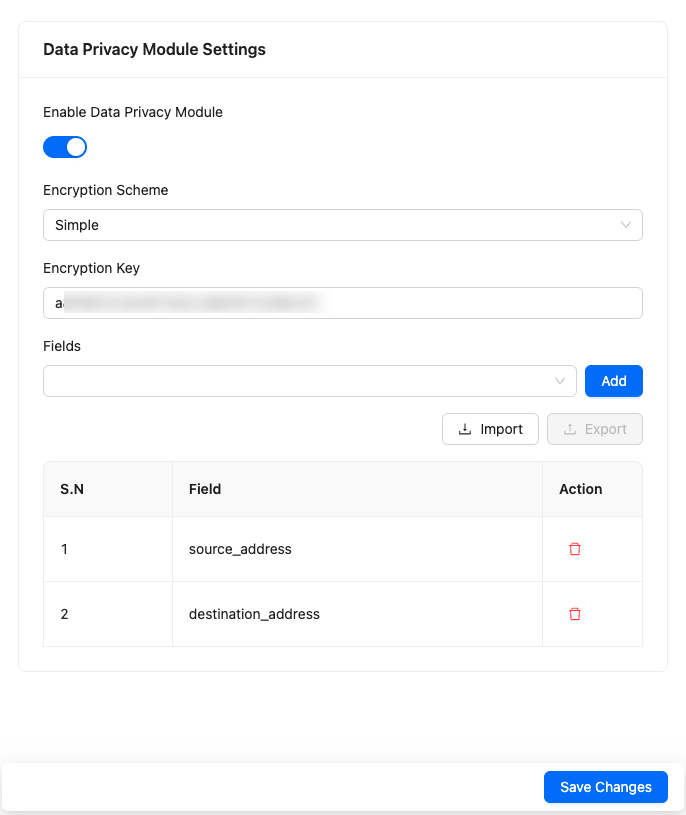
Configuring Data Privacy
Click Save.